5 Best Image Converter Tools for Web Designers


Why You Still Need an Image Converter
If you build websites, you spend a surprising amount of time converting images. PNG to WebP. JPG to WebP. HEIC to something normal. AVIF to something your CMS actually accepts.
It is not glamorous work. But getting it wrong means slow pages, broken layouts, and Core Web Vitals that make Google lose interest in your site.
The good news is that there are some genuinely good image converter tools out there now. The bad news is that half of them want you to sign up, upload to their server, or deal with a clunky interface that feels like it was built in 2014.
Here are five that actually do the job without the usual nonsense.
1. Squoosh
Squoosh is Google's own image optimizer, and it is properly good. You drag an image in, pick your format, and it shows you a side-by-side comparison so you can see exactly what the compression is doing to your image before you commit.
It runs entirely in your browser. No uploads. No server processing. No account needed. Your files never leave your machine, which is reassuring if you are working with client assets.
The downside is that it is built for single images. If you need to batch convert 200 product photos, Squoosh will make you sad. But for quick, high-quality one-off conversions with visual quality control, it is hard to beat.
Best for: Visual quality comparison and one-off conversions.
2. CloudConvert
CloudConvert is the grown-up option. It supports over 200 formats, gives you control over resolution, quality and file size, and has an API if you want to build conversion into your own workflow.
It handles batch conversions well, and the quality controls are genuinely useful rather than decorative. You can set JPEG quality, PNG compression, and resize dimensions before you convert.
The catch is that the free tier has limits. You get 25 conversions per day on the free plan, which is fine for occasional use but will frustrate you if you are processing a full site migration.
Best for: Batch conversions and professional workflows with quality control.
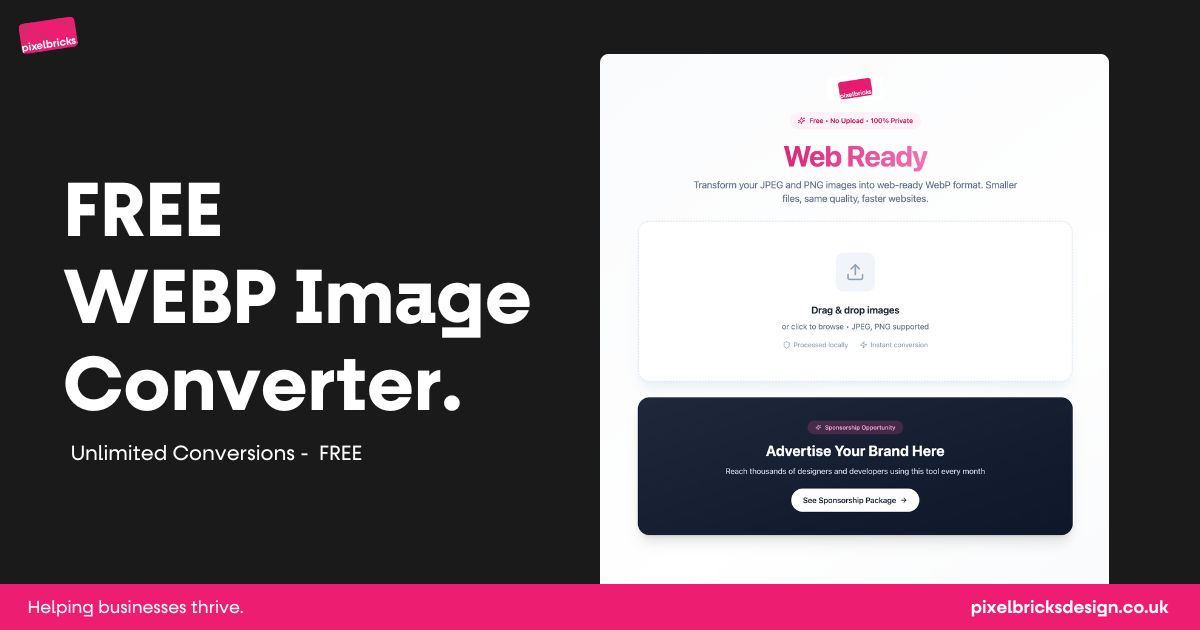
3. WebPConverter.io
A focused, no-nonsense WebP converter. You upload your image, pick your format, and get your file. That is the whole thing, and honestly that is what most people want.
It handles conversions both ways. WebP to PNG, WebP to JPG, and back again. The interface is clean, there is no learning curve, and it does not try to be everything to everyone.
This tool ensure every image is reduced to under 200kb - which is perfect for the web!
If you are working with WebP specifically (and if you build websites, you probably are), having a tool that does one thing well is refreshing. As I wrote about the best image format for the web, WebP is the format Google wants you to use, so a dedicated converter for it is genuinely useful.
Best for: Quick, focused WebP conversions without the bloat.
4. Convertio
Convertio supports over 108 image formats. If you have got an obscure file type that nothing else will touch, Convertio probably will.
It handles all the usual suspects (JPG, PNG, WebP, GIF, BMP, TIFF, HEIC, SVG) but also covers camera RAW files and more niche formats. You can convert from your device, Google Drive, Dropbox, or a URL.
The interface is straightforward and the conversions are reliable. Free tier allows files up to 100MB, which covers most use cases. The main downside is that it uploads your files to their servers, so if you are working with sensitive client assets, you might want to think twice.
Best for: Unusual formats and cloud-storage integration.
5. FreeConvert
FreeConvert is the all-in-one option. It does image conversion, but it also handles compression, resizing, cropping, and rotation. If you want a single tool that does everything image-related, this is it.
It supports over 500 formats, has a 1GB file size limit on the free tier, and lets you pull files from your device, Dropbox, Google Drive or OneDrive. The batch conversion works well, and the interface is clean enough that you will not get lost.
Pages with properly optimised images load faster, and faster pages convert better. If you want to read more about that connection, I wrote about how to make your website convert more customers here, and image optimisation plays a bigger role than most people think.
Best for: All-round image tasks when you need more than just conversion.
Which One Should You Use?
Honestly, it depends on what you are doing. If you need one quick conversion with visual quality control, Squoosh. If you are processing a full site's worth of images, CloudConvert or FreeConvert. If you work with WebP regularly, WebPConverter.io. If someone sends you a weird format nobody has heard of, Convertio.
The important thing is that you are actually converting your images. Unoptimised images are one of the most common reasons a new website does not rank on Google. Fast pages need small images, and small images need a converter you trust.
Pick one, bookmark it, and stop putting it off.
Image conversion is not optional if you want fast pages and good Core Web Vitals.
Squoosh is best for single conversions with visual quality comparison. No uploads, no account.
CloudConvert and FreeConvert handle batch processing with quality controls and cloud storage integration.
[WebPConverter.io](https://WebPConverter.io) does one thing well: focused WebP conversions without the bloat.
Pick one tool, bookmark it, and stop putting off image optimisation. Your site speed depends on it.
FAQs About Image Converter Tools
What is the best image format for websites?
WebP is the best all-round format for the web. It produces smaller files than JPG and PNG while keeping good visual quality. Most modern browsers support it, and Google actively prefers it for Core Web Vitals scoring.
Do I need to pay for an image converter?
No. Squoosh and WebPConverter.io are completely free with no limits. CloudConvert, Convertio and FreeConvert have free tiers that cover most everyday use, with paid upgrades for heavy batch processing.
Are online image converters safe to use?
Most are safe, but some upload your files to their servers. If you are working with sensitive client images, look for browser-based tools like Squoosh that process files locally without uploading anything.
Can I batch convert multiple images at once?
Yes. CloudConvert, Convertio and FreeConvert all support batch conversion. Squoosh is designed for single images, so it is not ideal for bulk processing.